 Join The Club





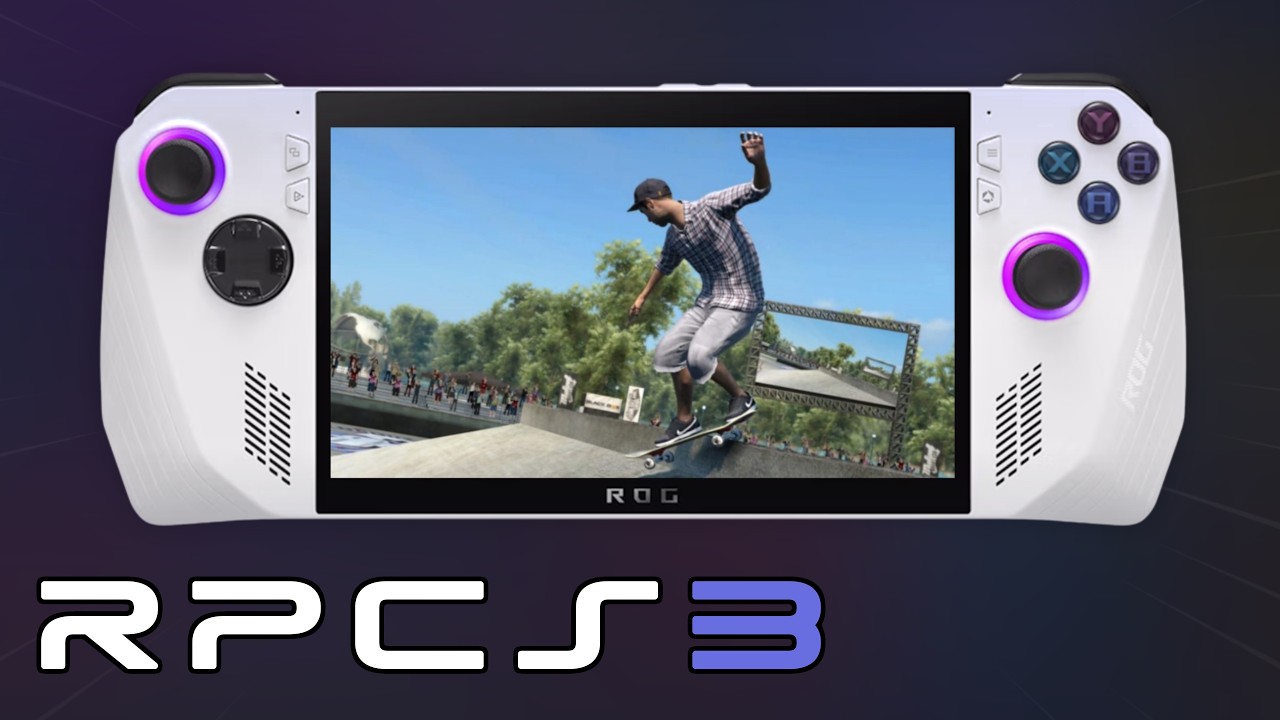
Considering it's emulating one of the most complex consoles ever made, PS3 emulator RPCS3 is remarkably easy to use. On desktop it has a load of helpful tooltips explaining the basic, recommended settings, with lots of graphical settings and checkboxes for the tinkering-inclined to play with if they so choose. The controller-friendly "big picture" experience wasn't quite so polished, but that's now changed with recent updates to the emulator polishing up the in-game overlay.
Now pulling up the overlay by pressing Start + Select offers immediate access to some handy options—taking a screenshot, saving state, restarting the game—as well as access to a settings menu with most of the adjustments available without further digging. Key graphics options like resolution scaling and the framerate limiter are right there and easy to adjust.
Article continues belowYou must confirm your public display name before commenting
Please logout and then login again, you will then be prompted to enter your display name.